Scanning Options Manager
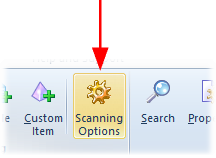
To modify scanning profile please use the Scanning Options manager. On the Main tab of the Ribbon toolbar please click the Scanning Options button:
The Scanning Options window will appear. Here you can add, remove, export, import or modify the each scanning profile.
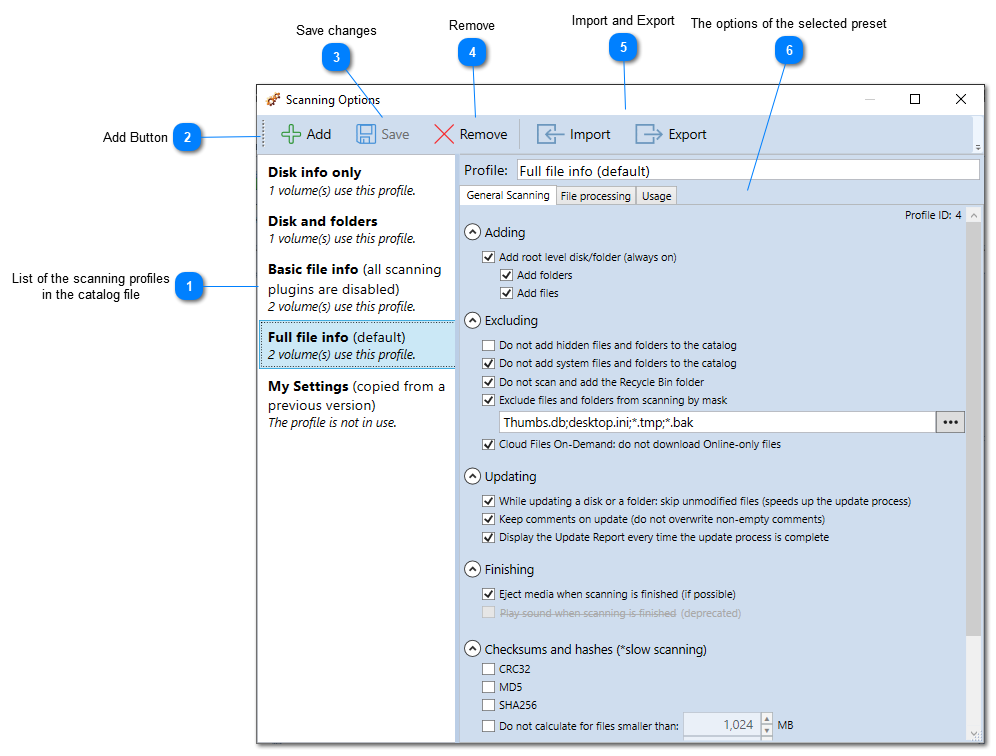

List of the scanning profiles
in the catalog file

All the sets of the scanning options are listed here. WinCatalog also displays the number of disks that use each preset.
Top

Add Button

Click the Add button to create a new scanning profile, WinCatalog will suggest to copy values from one of the existing profile.
Top

Save changes

Click the Save button to save all changes you made for scanning profiles. If you wish to discard changes, close the window. If there were any changes, WinCatalog will ask if you wish to save or cancel changes. The Save button in active only if you made any changes, otherwise the button is inactive.
Top

Remove

Click the Remove button to delete the selected scanning profile. If the scanning profile is in use by any drive, WinCatalog will ask for a scanning profile to switch to.
Top

Import and Export

Click the Export button to export the selected profile to a text file (JSON formatted values), or the Import button to import another profile from a text file containing JSON formatted values.
Top

The options of the selected preset
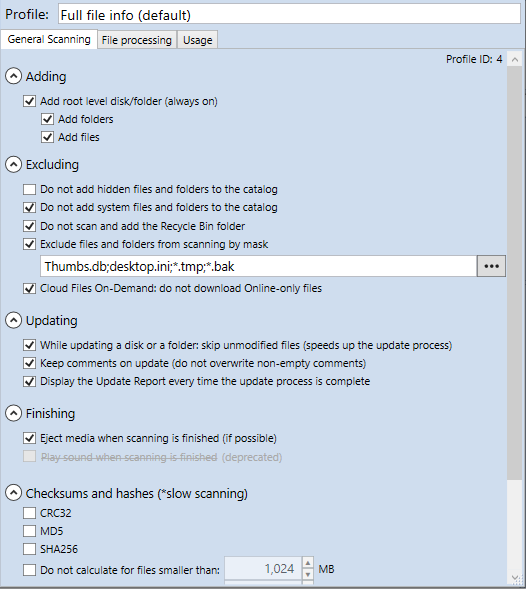
Modify the options of the selected profile and click Save to save changes or Discard to cancel the changes.
Top