Thumbnails Tab
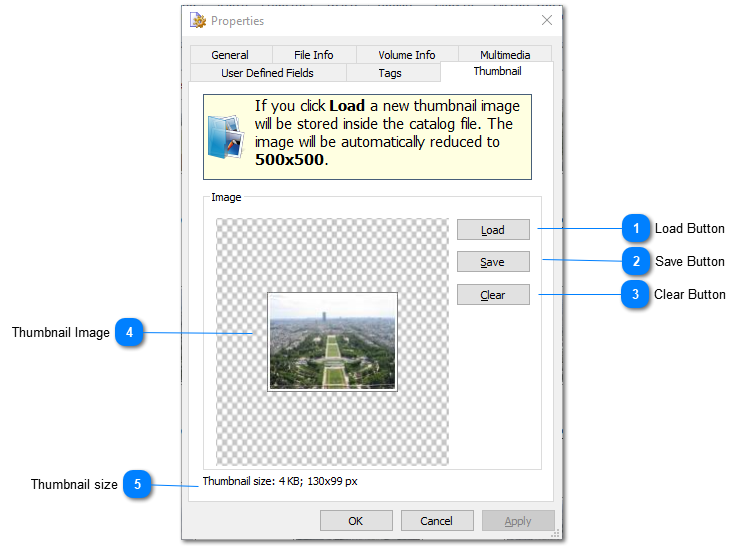

Load Button

You can force WinCatalog to create new thumbnail image from any picture on you computer. Press Load button to change or set new thumbnail image for the selected item(s).
The thumbnail image can be set for any item in the catalog. The thumbnail image will be stored inside the catalog file and it do not need the original source image for displaying the preview.
Top

Save Button

Click Save if you want to export and save the stored thumbnail to disk.
Top

Clear Button

Click Clear button to remove thumbnail image(s) for the selected item(s).
Top

Thumbnail Image

The thumbnail preview image is displayed here (if available).
Top

Thumbnail size

This value displays the actual size of the thumbnail image stored in the catalog in pixels and in kilobytes
Top