Generating Reports, Printing and Exporting Data
Some features from this article are available in WinCatalog Professional license. Details: Difference Between Personal and Professional Licenses
Using WinCatalog 2026, you can export a part of your catalog file into a CSV (for opening in Excel, PRO Feature), an HTML (for printing or publishing), a multi-page HTML (for publishing), or XML (for data exchange, PRO Feature). The export functionality is called Reports.
How to generate reports based on custom set of folders
To generate a report please click the Catalog button (left from the Main tab or the Ribbon toolbar) and then click Reports.

Configure the report type and other options, select Custom Set of Folders in the Data Source , then fill the report with items you want to export and click Save Report to save the results.
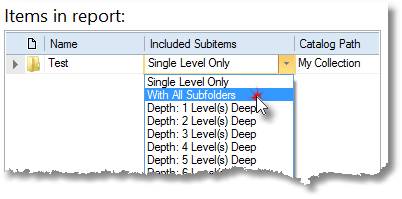
Please note that you can change the depth of included sub-items using the Included Subitems column:
How to generate reports based on search results
To generate a report please click the Catalog button (left from the Main tab or the Ribbon toolbar) and then click Reports.
Please select HTML or CSV as a report type (CSV and XML are available in WinCatalog 2026 Professional), configure columns and other options, then switch the Data Source option from Custom Set of Folders to Search Results , this will show you an empty search form. Perform a search, and when the search is complete, click Save Report to save the report into the selected file format (CSV or HTML). WinCatalog will ask you for a filename and will save the results into that file.
The reports are also available from the Ribbon toolbar: