Indexing a Disk
Indexing a Disk
Click Add Disk
On the Main tab click Disk button on the Adding panel to index a new disc.

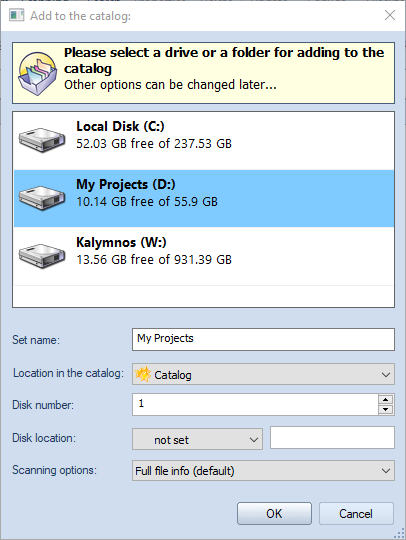
Select a Disk to Add
Select a disk you want to index. In our example it will be a DVD with photos. Click OK when done.
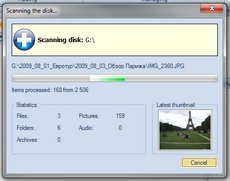
Wait the Process is Finished
Please wait while WinCatalog scans the disc. The disc scanning process can take some time. It depends on a number of files on the disc and on the file types. On finishing WinCatalog will play “tada” sound.
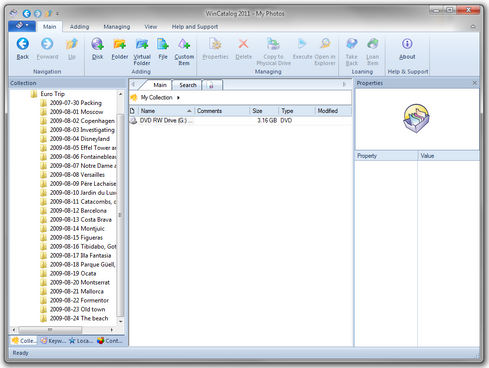
The Disk is Added
The newly added disc will be displayed in the program. You do not need to click Save button: WinCatalog 2026 saves all changes automatically.
Unplug or Eject the Drive
You can eject the disc from the computer. WinCatalog no longer needs the disc.
Loop
Repeat steps 1-5 for each drive you want to index.
Read next: Indexing a Folder