Rating Items (1–5 Stars)
WinCatalog lets you rate any item from 1 to 5 stars, so you can sort and filter your collection by how much you like something or how good it is. A rating of 0 stars means the item is unrated.
Setting a rating
There are several ways to rate the selected item. If you select several items first, the rating applies to all of them at once.
Keyboard shortcuts (fastest)
| Shortcut | Action |
|---|---|
| Ctrl+1 | Set 1 star |
| Ctrl+2 | Set 2 stars |
| Ctrl+3 | Set 3 stars |
| Ctrl+4 | Set 4 stars |
| Ctrl+5 | Set 5 stars |
| Ctrl+0 | Clear the rating (back to unrated) |
These are the defaults. Like all WinCatalog shortcuts, you can reassign them in Program Options → Keyboard Shortcuts if they clash with something else you use.
Right-click menu
Right-click the selected item(s) and use the Rating submenu to pick a star value or clear the rating.
Properties panel
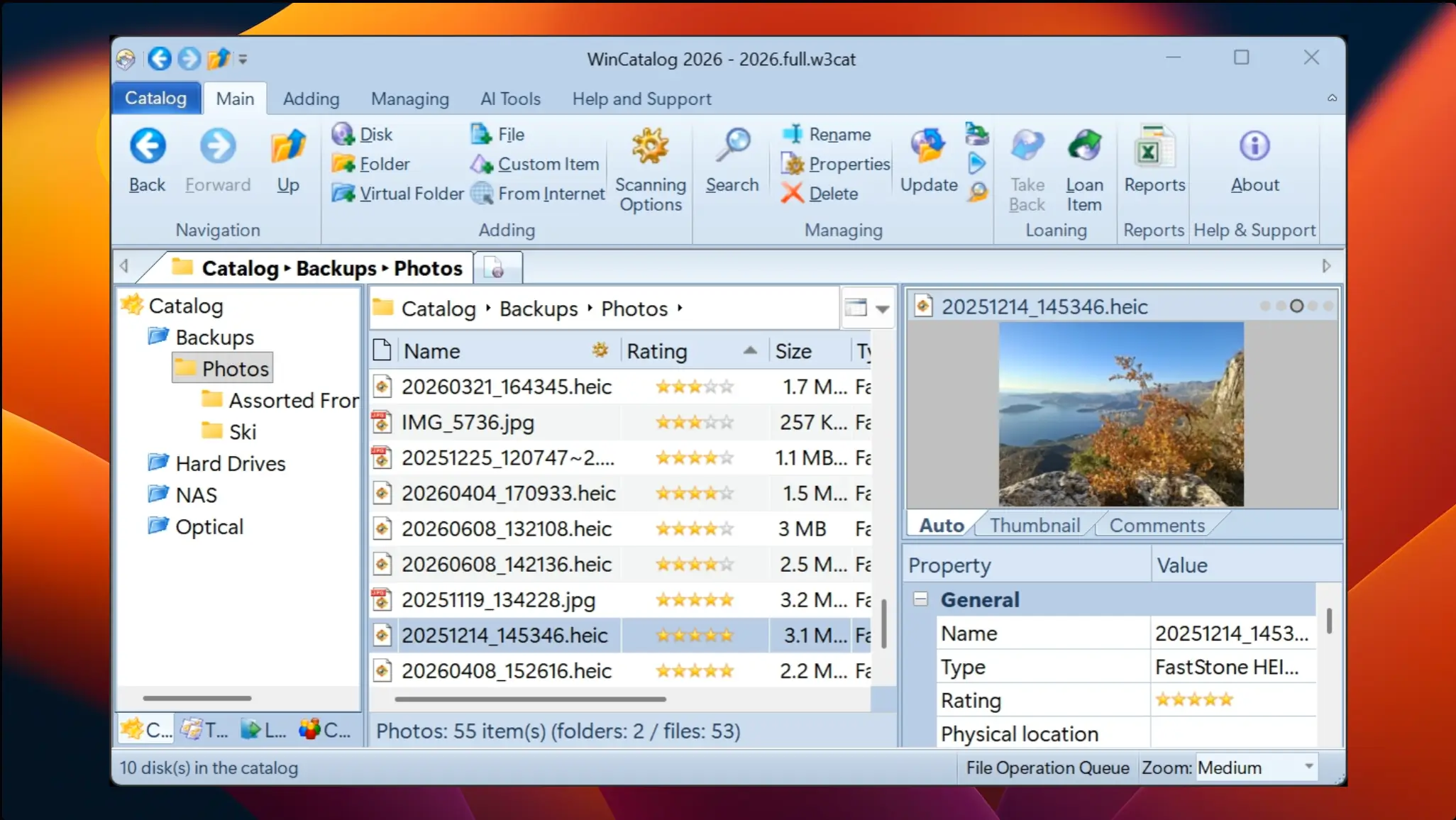
The General section of the Properties panel has a graphical star control. Click a star to set the rating directly. The row stays hidden while an item is unrated and shows up once you give it a rating.
Viewing ratings
- Properties panel — the star control in the General section shows the current rating.
- Rating column — the list/report view has a dedicated Rating column that draws the stars as icons. It is hidden by default; add it through the column chooser (right-click a column header → More…). Once it’s visible, you can sort by it to bring your best-rated items to the top.
- Dynamic Columns — use the
%rating%token inside a custom column (see Dynamic Columns article).
Finding items by rating
Use the search filter by rating to list items at a given star level (for example, everything rated 4 stars or higher). Add a Rating condition when you build a search to filter the collection by rating.