Tabs
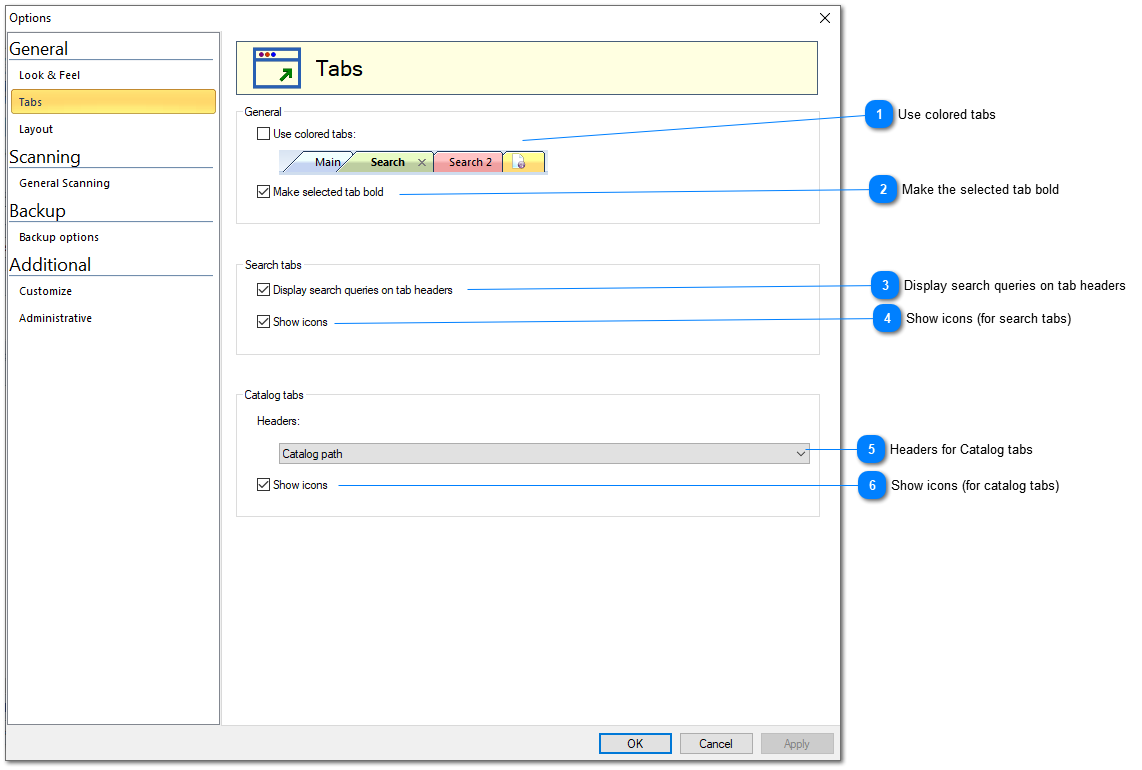

Use colored tabs
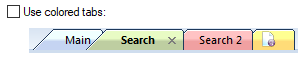
This option enables or disables colored tabs for main window. This option is switched off by default.
Top

Make the selected tab bold

If this option is enabled, the header of the selected tab will be shown using a bold font
Top

Display search queries on tab headers

If this option is enabled, headers of search tabs will display search queries. Otherwise, it will display “Search”, “Search 1”, “Search 2”, etc.
Top

Show icons (for search tabs)

If this option is enables, search icon will be shown for search tabs.
Top

Headers for Catalog tabs

Headers of catalog tabs may display: Catalog Path, (Selected) Folder Name, or just Tab number.
Top

Show icons (for catalog tabs)

If this option is enables, icon of the selected entry (drive or folder) will be shows in the header area of the catalog tab
Top