Volume Info
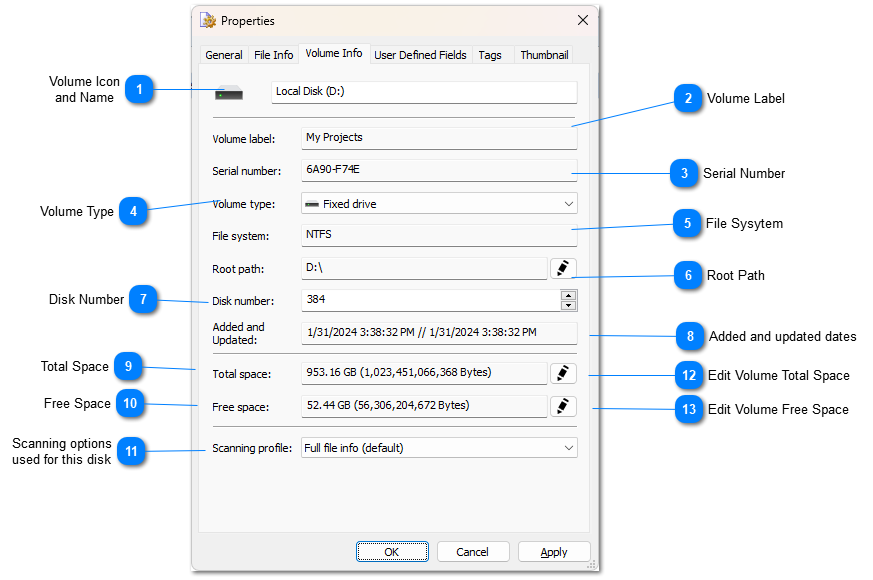
The Volume Info tab of the Item Properties Dialog displays information about drive where the file or folder is stored. This tab is not available for non-file items.

Volume Icon
and Name

The icon and the Name of the volume where the file is stored.
Top

Volume Label

Label of the selected volume.
Top

Serial Number

Serial number of the selected volume.
Top

Volume Type

Type of the selected volume.
Top

File Sysytem

File System of the selected volume.
Top

Root Path

Root path of the selected volume. You do not need to change this value because WinCatalog will find a new root path of the volume by using the Serial Number field.
Top

Disk Number

Disk number is the value you can set here or in the Add Disk / Add Folder dialog, usually WinCatalog automatically increments this value for each disk you add.
Top

Added and updated dates

WinCatalog remembers when the disk was initially added to the catalog and last time when it was updated.
Top

Total Space

Total Space of the selected volume.
Top

Free Space

Free Space of the selected volume.
Top

Scanning options
used for this disk

The set of the scanning options that was used to scan or update this disk, you can switch it and WinCatalog will use another set of the option next time you update the disk.
Top

Edit Volume Total Space

Click this button to set Volume Total Space manually
Top

Edit Volume Free Space

Click this button to set Volume Free Space manually
Top