Tags Tab
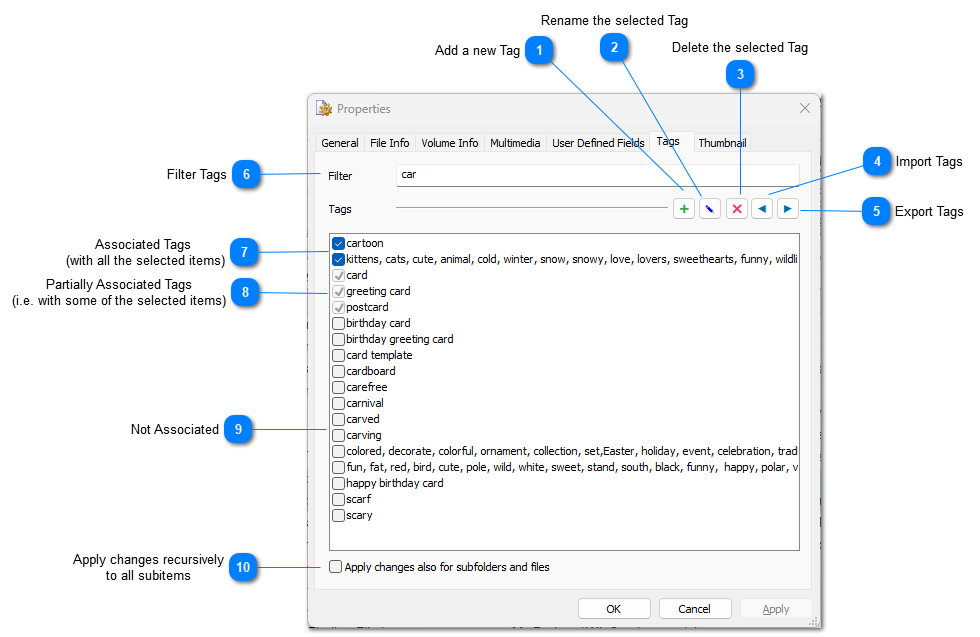
Mark tags which you want to associate with the selected item(s). Using this tab you can also add new tags or delete them.

Add a new Tag

Click the Add button to add a new tag to the catalog. [INS] is the shortcut for this command.
Top

Rename the selected Tag

Click the Rename button to change the title of the selected Tag. [F2] is the shortcut for this command.
Top

Delete the selected Tag

Click Delete button to delete the selected tag from the catalog. [DEL] is the shortcut for this command.
Top

Import Tags

Import tags from text
Top

Export Tags

Export the list of tags to a text file.
Top

Filter Tags

Filter the list of tags and display only tags matching the entered text. Spaces are word separators. If no tags are matching the filter, WinCatalog suggests to add a new tag. Press [Enter] to add the tag.
Top

Associated Tags
(with all the selected items)

The tags associated with each of the selected items are marked. Mark or unmark tags to change the association.
Top

Partially Associated Tags
(i.e. with some of the selected items)
 The tags assigned with just some of the selected items are marked as gray. Marking the grayed tag will associate it with all the selected items. Unmarking the grayed tag will clear the association for all the selected items. Leaving the tag gray will leave the association unchanged.
Top

Not Associated
Unmarked keywords are not associated with the selected item(s)
Top

Apply changes recursively
to all subitems

If this option is not set, tags will be applied to the selected items only. If this option is set, tags will be applied to the selected items, and to all sub-folders and files recursively.
Top