The UI Tool for Update All / Update Connected
You can use the UI tool to configure the UpdateAll / UpdateConnected command.
Click on the “WinCatalog 2026 Update All Command” shortcut in the Start Menu or run the “UpdateAllCommand.exe” from WinCatalog folder in Program Files (x86):

The UI Tool will start:
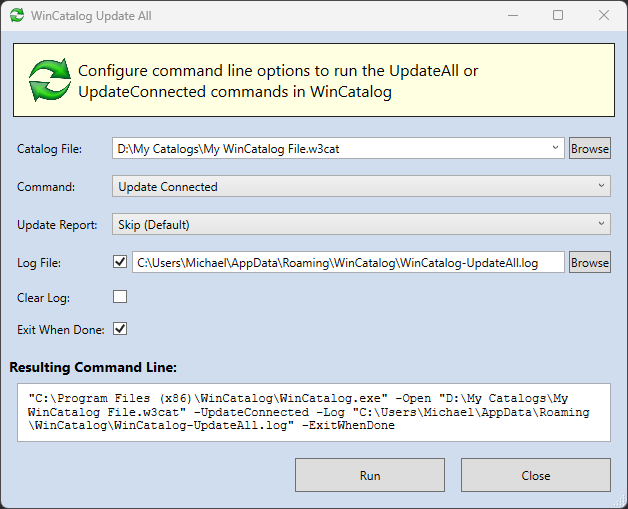
1. Catalog File: Choose the Catalog File to open from the dropdown list, or click the “Browse” button to select one manually.
2. Command: Select a command from the dropdown list. You can choose between two commands: “Update All” or “Update Connected.”
3. Update Report: Choose the Update Report option:
- Skip (default): The update report will not be displayed.
- Show: The update report will be displayed after updating each drive.
4. Log File: Check this box to enable logging. If logging is enabled, you must specify the path where the log file will be saved.
5. Clear Log: Check this box to clear the log file at startup. If unchecked, new log entries will be added to the existing log file.
6. Exit When Done: Check this box to automatically close WinCatalog when all operations are complete.
You can find the the resulting command line Resulting Command Line field. Copy it to run from a console, or click the Run button to run it right from the tool.