Main Tab
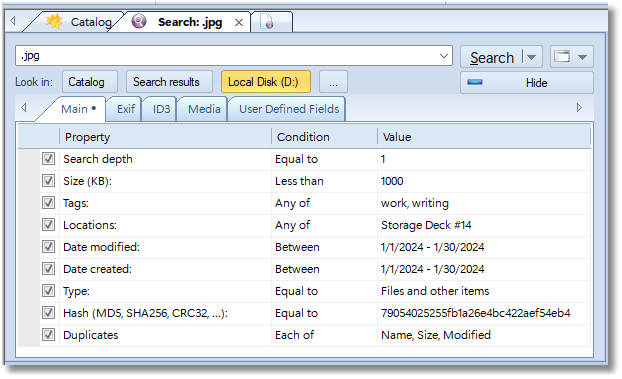
| Property | Conditions | Description |
|---|---|---|
| Search depth | Equal to | limits the depth of the search by the selected value. 1 means to look inside the selected location, 2 means to look inside the selected location and inside the first-level subfolders. And so on. |
| Size (KB) | Less than, Equal to, Between, Greater tha | filter search result matching the selected size. The size should be set in KB (kilobytes). |
| Tags | Any of Each of Only None of | associated tags. The “Any of” conditions means that at least one of the selected tags from the “Value” field should be assigned to the entry. The “Each of” condition means that all the selected tags must be assigned to the entry. The “Only” condition means that all the selected tags and no other tags should be assigned to the entry. The “None of” condition means that none of the selected tags should be assigned to the entry. |
| Path | Contains Advanced query | filters search results by the file path (the same value as the File Path column, built from the real folder structure). The “Contains” condition finds the entered text anywhere in the path, including fragments with backslashes such as “Backup\2019”. The “Advanced query” condition uses the regular search query syntax. See the “Searching by Path” section below for path-specific tips. |
| Locations | Any of | the Physical Location field of the selected entry should be set to one of the selected locations. |
| Date Modified, Date Created | Before, On, After Between | the file attribute “Date Modified” or “Date Created” should match the condition. |
| Type | Equal to | filters search results by internal catalog types. The Value field may be one of the following: Folders and disks - the search results should contain only disks and folders (in other words, to exclude files). Disks and root folders - the search results should contain only drive records or top-level (root) folders added via the Add Folder command. Files and other items - find only files and custom items (i.e. exclude folders and drive records from search results). |
| HASH (MD5, SHA256, CRC32, …) | Equal to Contains Advanced query | filters search results by the entered Hash (or checksum) value. In most cases, when searching using hashes, leave the search field blank (means find all files and folders) and paste the hash value into this field. |
| Duplicates | Each of | finding duplicates by the selected fields. Read the Finding Duplicates of Fields and Other Entries topic for details. |
Searching by Path
The Path filter matches the full file path of each entry, for example D:\Photos\Vacation 2023\IMG_0001.jpg. It is applied to the entries found by the search query, so you can leave the search box blank (find everything) and filter by path only.
The path is treated as one line of text where the backslash \ separates words, exactly like a space does in filenames. This gives you a few useful tricks in the “Advanced query” mode:
- A folder starting with a word. The query
Vacationfinds entries located under a folder (or having a file name) that starts with “Vacation” — it matchesD:\Photos\Vacation 2023\IMG_0001.jpg. Like everywhere in WinCatalog, it also matches “Vacation” starting any word, for exampleD:\Photos\Summer Vacation\.... - Strictly at the beginning of a folder name. The query
*\Vacation(asterisk, backslash, then the word) matches only paths where a folder name begins with “Vacation”:D:\Photos\Vacation 2023\...matches, butD:\My Vacation\...does not. - A folder ending with a word. The query
*Backup\(asterisk, the word, then a backslash) finds entries with a folder name ending in “Backup”: it matchesD:\Old Backup\2019\report.txt. - Consecutive folders. A fragment containing a backslash is matched literally, but in the “Advanced query” mode it needs a leading asterisk:
*Backup\2019(or*\Backup\2019for the exact folder name) finds only entries whose path contains the folder “2019” directly inside a folder named “Backup”. The “Contains” condition adds the asterisk automatically, so there you can simply enterBackup\2019. - The end of the path. The end-of-word anchor
$applies to the end of the whole path, not to every folder name. The queryReports$matchesD:\Work\Reports, but does not matchD:\Work\Reports\January.xlsx— in that path “Reports” is followed by more folders. To find entries with any folder ending in “Reports”, use*Reports\instead.
The “Contains” condition simply finds the entered text anywhere in the path: dev matches both C:\PHP\dev\test.php and C:\Devices\list.txt.
For a ready-made query built on this filter, see Excluding Archive and Container Contents from Search Results.