Layout
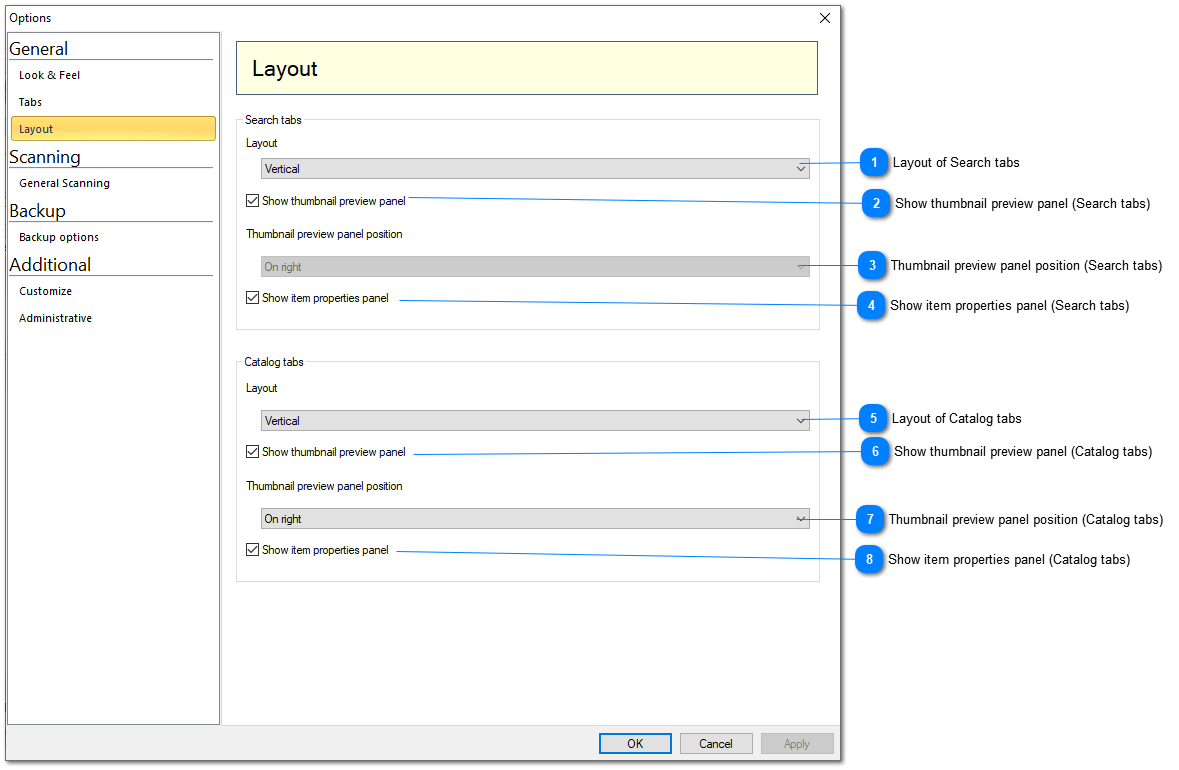
Here you can configure the layout of Catalog and Search tab, select which panels will be displayed, the location of these panels, and their order.

Layout of Search tabs

You can select between vertical and horizontal layouts of Thumbnail and Properties panels.
Top

Show thumbnail preview panel (Search tabs)

Show or hide thumbnails preview panel.
Top

Thumbnail preview panel position (Search tabs)

Display thumbnail preview panel on the right or on the left. Works for the horizontal layout only.
Top

Show item properties panel (Search tabs)

Show or hide item properties panel.
Top

Layout of Catalog tabs

You can select between vertical, horizontal wide, and horizontal narrow layouts of Thumbnails and Properties panels. The horizontal wide layout displays the thumbnails and the properties panels below both tree view and right (grid) view. The horizontal narrow layout displays the thumbnails and the properties panels below the right (grid) view, but the tree view remains tall.
Top

Show thumbnail preview panel (Catalog tabs)

Show or hide thumbnails preview panel.
Top

Thumbnail preview panel position (Catalog tabs)

Display thumbnail preview panel on the right or on the left. For the vertical layout, if “On the left” is selected, the thumbnail preview panel will be shown below the tree view.
Top

Show item properties panel (Catalog tabs)

Show or hide item properties panel.
Top
The quicker way to change layout of the Catalog tab
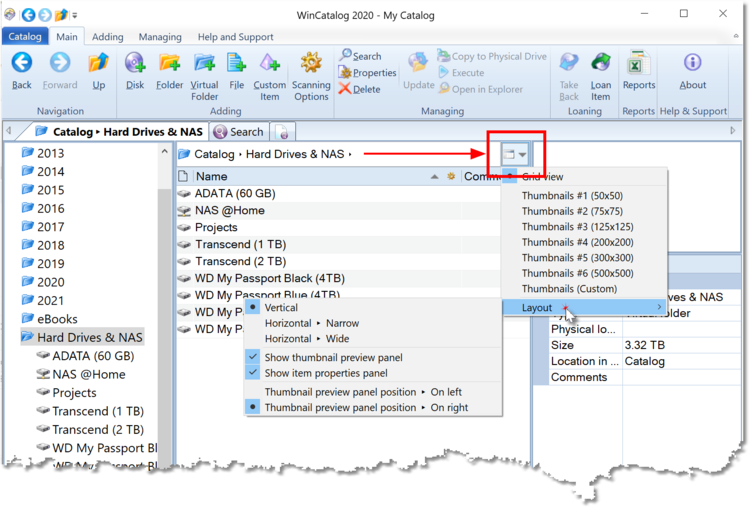
The quicker way to change the layout is via the View button on top of the right view:
The quicker way to change layout of the Search tab
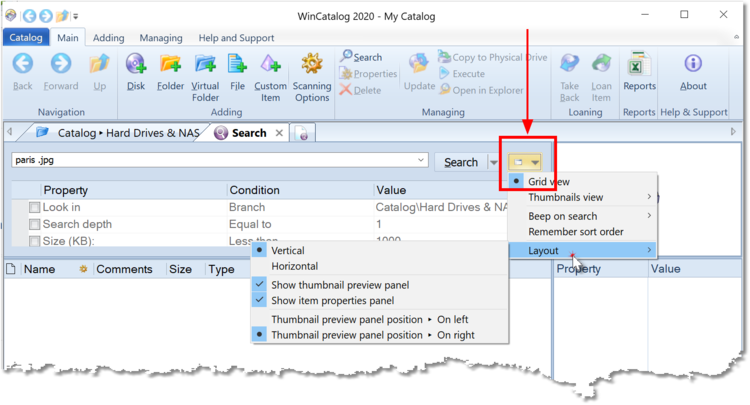
The quicker way to change the layout is via the View button on top of the right view: