General
On the General page, you set the sort order, the interface language and what WinCatalog does when you double-click an item.
To open this page, click the Catalog button (to the left of the Main tab of the ribbon), click Options, and then click General.
To change the color theme, the zoom and the look of the main grid, see Appearance.
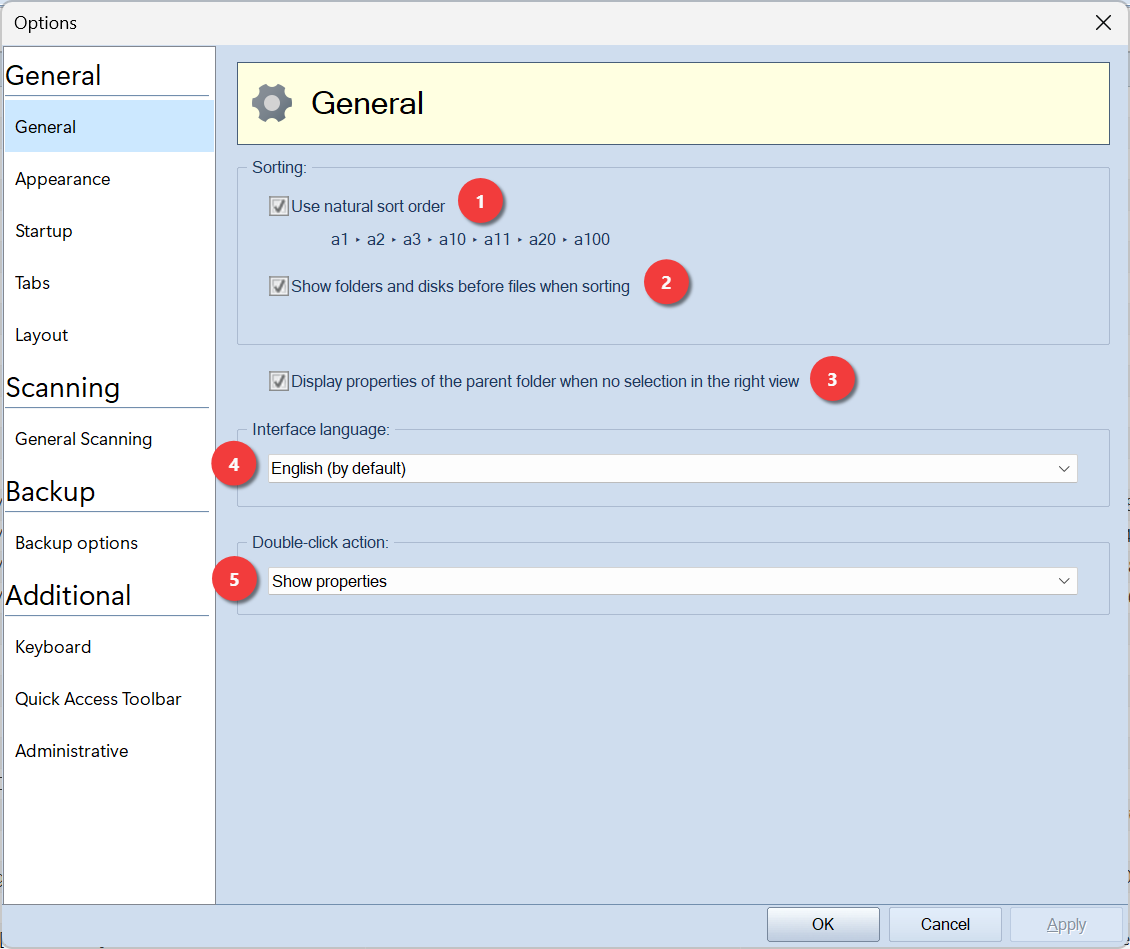
1. Use natural sort order
If this option is on (the default), WinCatalog sorts names as a person reads them. Numbers in a name are sorted by their value: a1 → a2 → a3 → a10 → a11 → a20 → a100.
If this option is off, WinCatalog compares names character by character, as a computer does: a1 → a10 → a100 → a11 → a2 → a20 → a3.
2. Show folders and disks before files when sorting
If this option is on (the default), WinCatalog shows disks and folders before files, as File Explorer does.
If this option is off, WinCatalog sorts folders and files together by name and does not look at the item type, as the macOS Finder does.
3. Display properties of the parent folder when no selection in the right view
If this option is on, and no item is selected in the main grid, the Properties panel shows the properties of the folder that is open in the main grid.
4. Interface language
The language of the WinCatalog interface. The list shows all the available translations. When you select a different language and click OK or Apply, WinCatalog changes the language of most of the interface immediately. Restart WinCatalog to apply the new language to all the parts of the program.
5. Double-click action
What WinCatalog does when you double-click a file in the main grid or in the thumbnail view:
| Action | Double-click on a file |
|---|---|
| Show properties | Opens the properties of the file. |
| Open in associated application (when clicked on file) | Opens the file in the application that Windows uses for this file type. |
| Reveal in File Explorer (when clicked on file) | Opens File Explorer and selects the file. |
| Reveal in File Explorer (when clicked on file or folder) | Opens File Explorer and selects the file. A double-click on a folder also selects the folder in File Explorer. |
A double-click on a disk or a folder opens it in WinCatalog, with all actions except the last one. In the search results, the folder opens in a new tab.
A double-click on an item that is not a file, for example a contact or a keyword, always opens its properties.
To open a file or reveal it in File Explorer, the disk that holds the file must be connected to the computer.
These keys change the double-click action:
| Key | Action |
|---|---|
| Alt + double-click | Opens the properties of the item. |
| Ctrl + double-click | Opens the item in a new tab. |
| Shift + double-click | Opens the folder in WinCatalog, also when the last action is selected. |