Appearance
On the Appearance page, you select the color theme of WinCatalog and set how the main window shows your catalog.
To open this page, click the Catalog button (to the left of the Main tab of the ribbon), click Options, and then click Appearance.
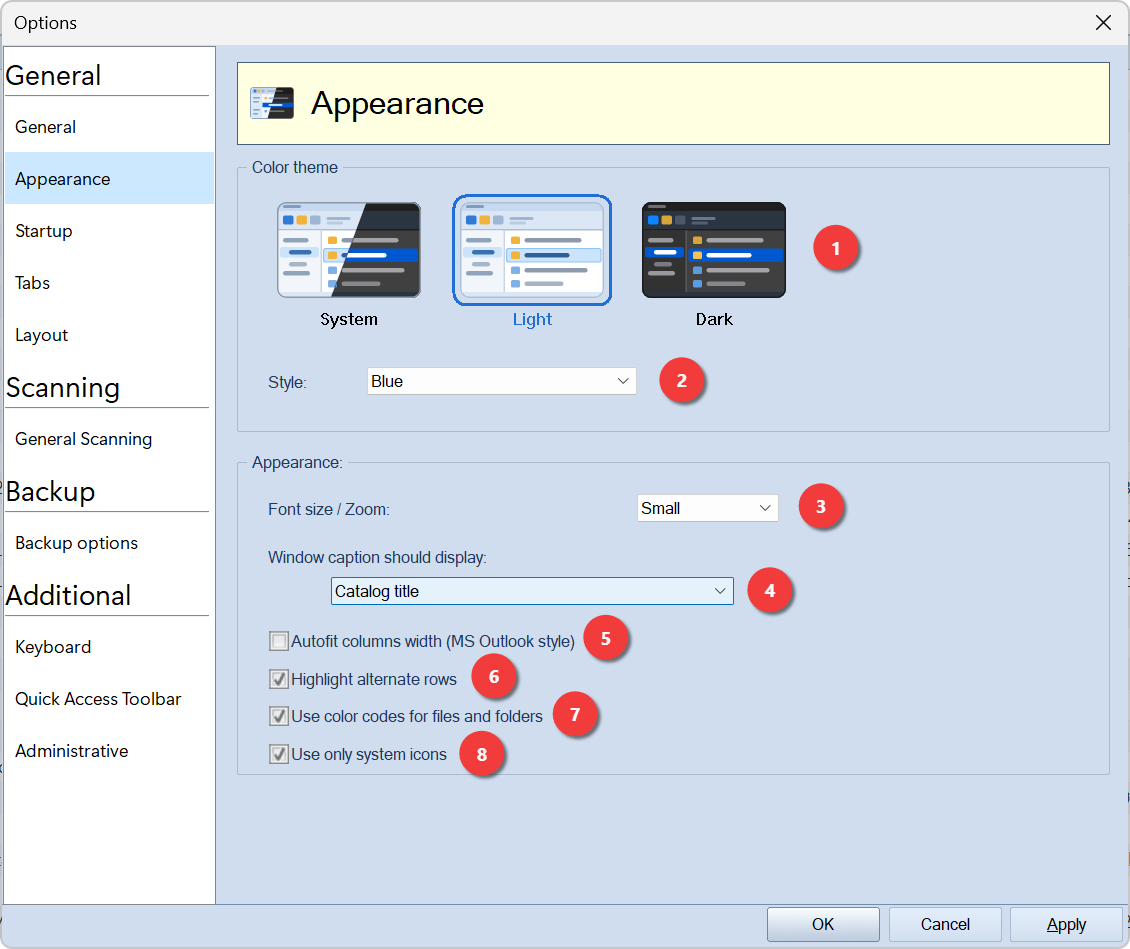
1. Color theme
| Tile | Theme |
|---|---|
| System | The same theme as Windows. If you change Windows from light to dark mode, WinCatalog changes to the dark theme at the same time, and back again. You do not have to restart WinCatalog. |
| Light | Always light. |
| Dark | Always dark. |
When you click a tile, WinCatalog changes the theme before you save it, so you can see how it looks. Click OK or Apply to keep the new theme, or Cancel to go back to the theme that you had before.
2. Style
The color style of the light theme: Blue, Silver or Graphite. This box shows only when you select the Light theme. The dark theme has one style.
3. Font size / Zoom
The size of the text in the panels, in the catalog tree and in the main grid: Small, Medium, Large or Extra large.
4. Window caption should display
The text that WinCatalog shows after the program name in the caption of the main window. Select Catalog title (see Catalog Title and Comments Dialog), Catalog filename, Full path to a catalog, or Nothing to show only the program name.
5. Autofit columns width (MS Outlook style)
If this option is on, WinCatalog changes the width of the columns in the main grid, so that the grid does not show a horizontal scroll bar. This option is good when you show three or four columns. When you show more columns, turn this option off.
6. Highlight alternate rows
If this option is on, every second row in the main grid has a different background color. This makes long lists easier to read.
7. Use color codes for files and folders
If this option is on, WinCatalog shows the color codes of files and folders in the catalog tree and in the main grid.
8. Use only system icons
If this option is on, WinCatalog shows the same file icons as File Explorer.
If this option is off, WinCatalog can show its own icons for some files, for example a box for archives, a film frame for video files and a photo for pictures. WinCatalog shows its own icon only for a file from which it read additional information during the scan. When you see such an icon, you know that the catalog has metadata for this file.
Which windows follow the theme
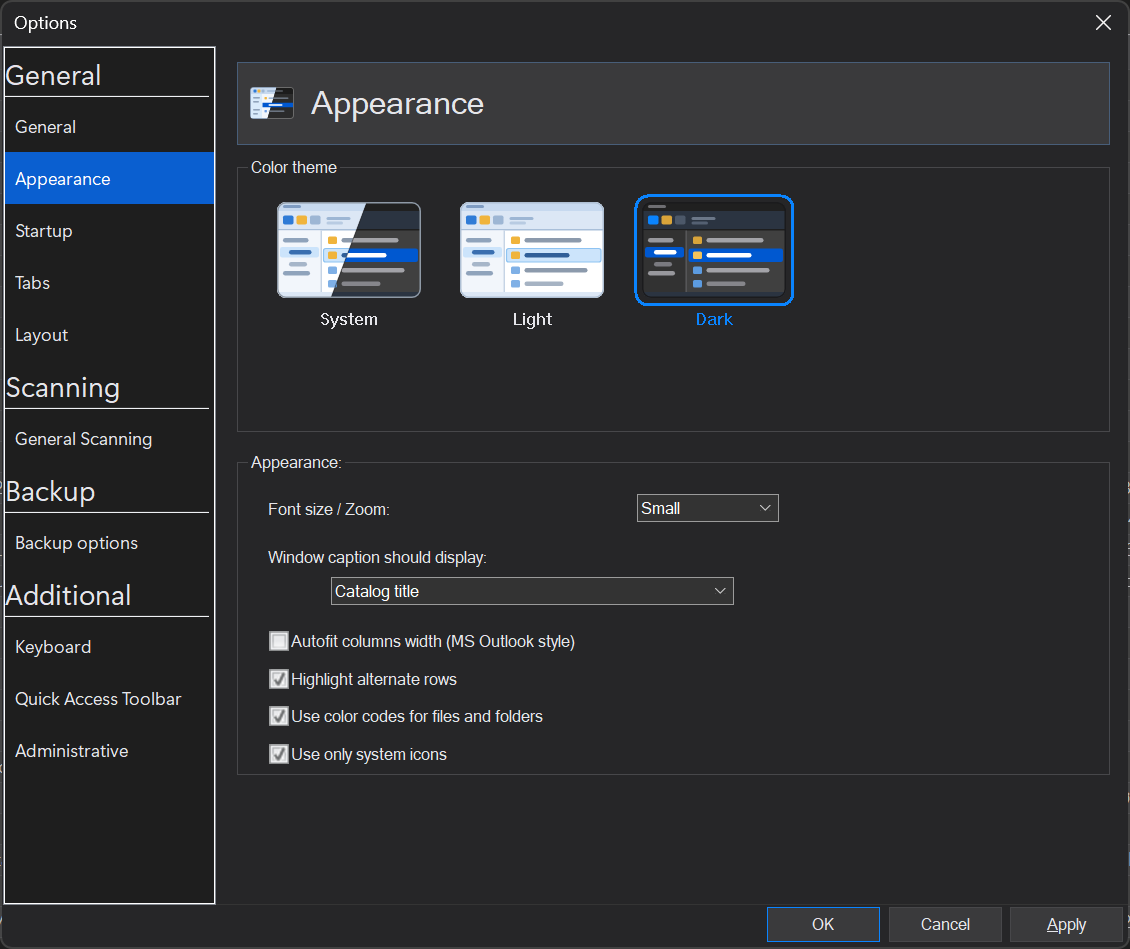
A new theme applies at the same time to the main window and to all the dialogs, also to dialogs that are open when you change the theme. Message boxes, title bars, menus, tooltips and the Quick Access Toolbar change too.
The other WinCatalog programs follow the same theme: the disk scanner (also during a scan), Scanning Options and WinCatalog AI Bridge.
The theme question at startup
When you start WinCatalog for the first time, the Startup Welcome Dialog asks which theme you want.
When you upgrade from a version of WinCatalog that did not have a dark theme, and Windows is in dark mode, WinCatalog asks you one time which theme you want:
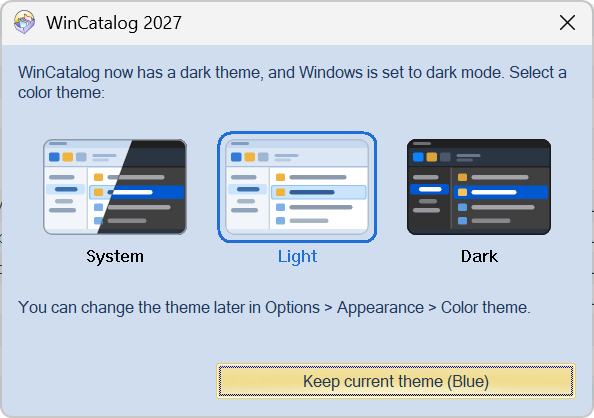
Click System, Light or Dark to select a theme. To keep the theme that you used before, click Keep current theme or close the dialog. You can change the theme at any time on this page.
WinCatalog does not show this question when Windows is in light mode, and when WinCatalog starts from the command line.