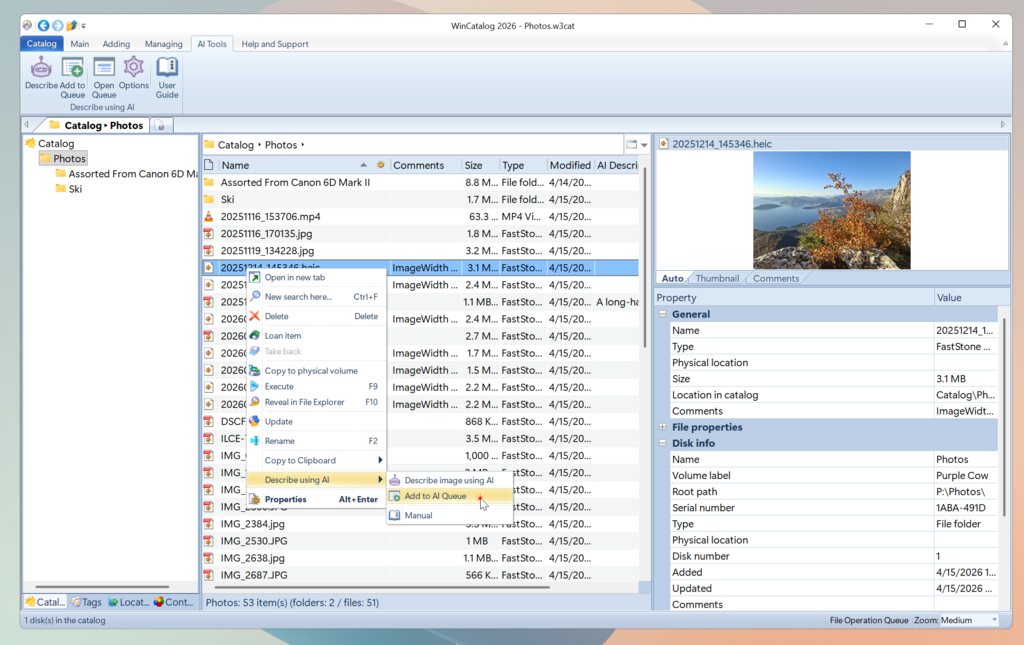
You can interact with AI Bridge directly from the main WinCatalog window without switching to the AI Bridge application. WinCatalog provides menu commands that let you add items to the AI Queue and trigger AI processing from within your catalog.
Adding Items to the AI Queue
To add one or more catalog items to the AI processing queue:
-
Select the items in WinCatalog (files, a folder, or a mixed selection). Important: all the selected items should have thumbnails in the catalog.
-
Use one of these methods:
-
Right-click the selection and choose
Add to AI Queue from the context menu
-
In the ribbon toolbar, go to the
AI Tools section and click
Add to Queue
WinCatalog will launch AI Bridge (if it is not already running) and add the selected items to the AI Queue tab. A status message confirms how many items were added:
-
Added 'filename.jpg' to AI Queue — for a single item
-
Added 5 item(s) to AI Queue — for a multiple selection
-
All 5 items are already in the AI Queue — if the items were already queued
After adding items, WinCatalog may show a confirmation dialog asking:
"N file(s) were added to the AI Queue. Do you want to open the AI Queue window now?"
Click Yes to switch to AI Bridge, or No to continue working in WinCatalog.
Generating AI Descriptions Immediately
To add items to the queue and start processing immediately:
-
Select the items in WinCatalog
-
Open the context menu or main menu
-
Click
Describe images using AI
This command adds the selected items to the queue and signals AI Bridge to begin processing automatically. AI Bridge will launch if needed.
## AI Tools in the Ribbon Menu
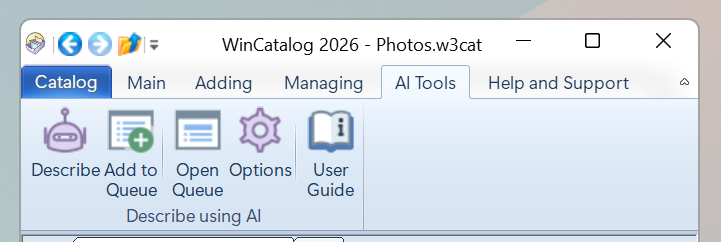
The WinCatalog ribbon includes a dedicated AI Tools section with the following commands:
Describe: Add selected items to queue and start processing immediately
Add to Queue: Add selected items to the AI Queue
Open Queue: Open the AI Bridge window
Options: Open AI Bridge settings
User Guide: Open this documentation
Viewing Results in WinCatalog
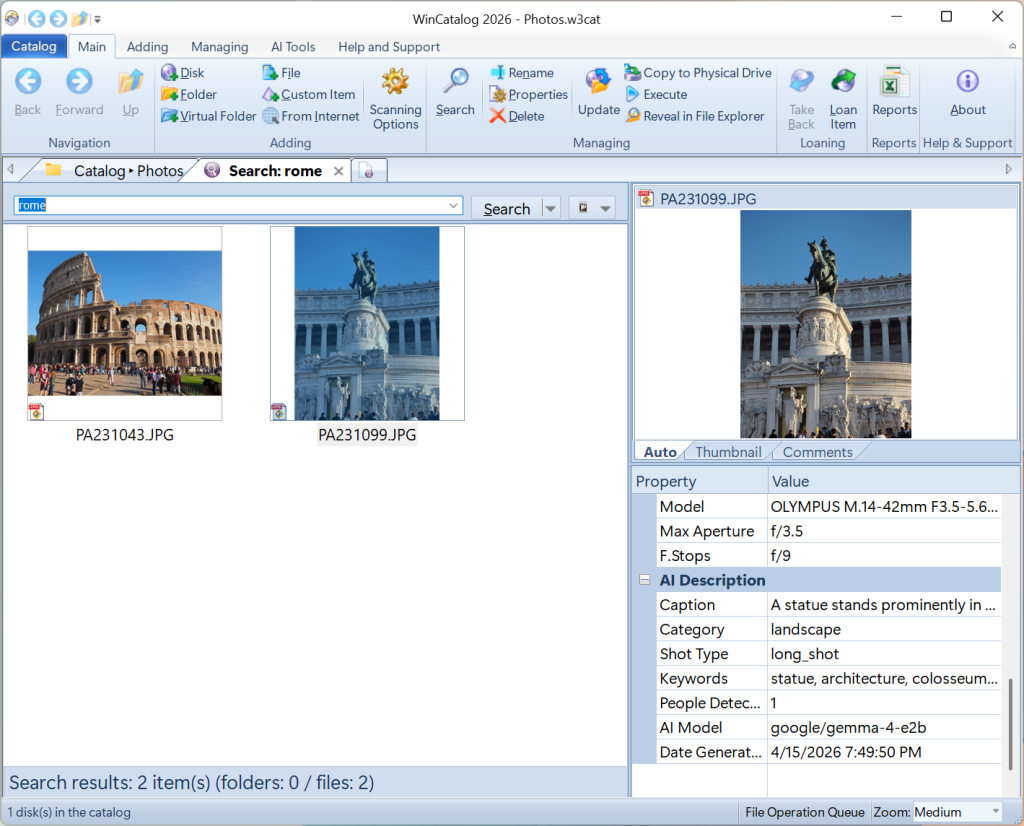
After AI Bridge has processed an image, the generated data becomes available in WinCatalog:
-
The
AI Description section on the Properties pane and in
Details tab of the item's properties dialog shows the generated caption
-
Generated
keywords and
caption are searchable through WinCatalog's standard search
-
Use the full-text search in WinCatalog to find images by their AI-generated content
-
Two dedicated columns:
AI Desctiption and
Keywords (AI) in the main grid view and in search results view
Notes
AI Bridge must be configured with a working AI provider before processing can start. See
Getting Started.
Items that don't have a thumbnail in the catalog cannot be processed by AI Bridge. When you select items that cannot be processed (no thumbnails), WinCatalog shows them in a separate "Cannot be added to AI Queue" group so you can see which items were skipped and why.
If AI Bridge is already running and processing other items, newly added items are placed at the end of the queue and processed when the current batch finishes.