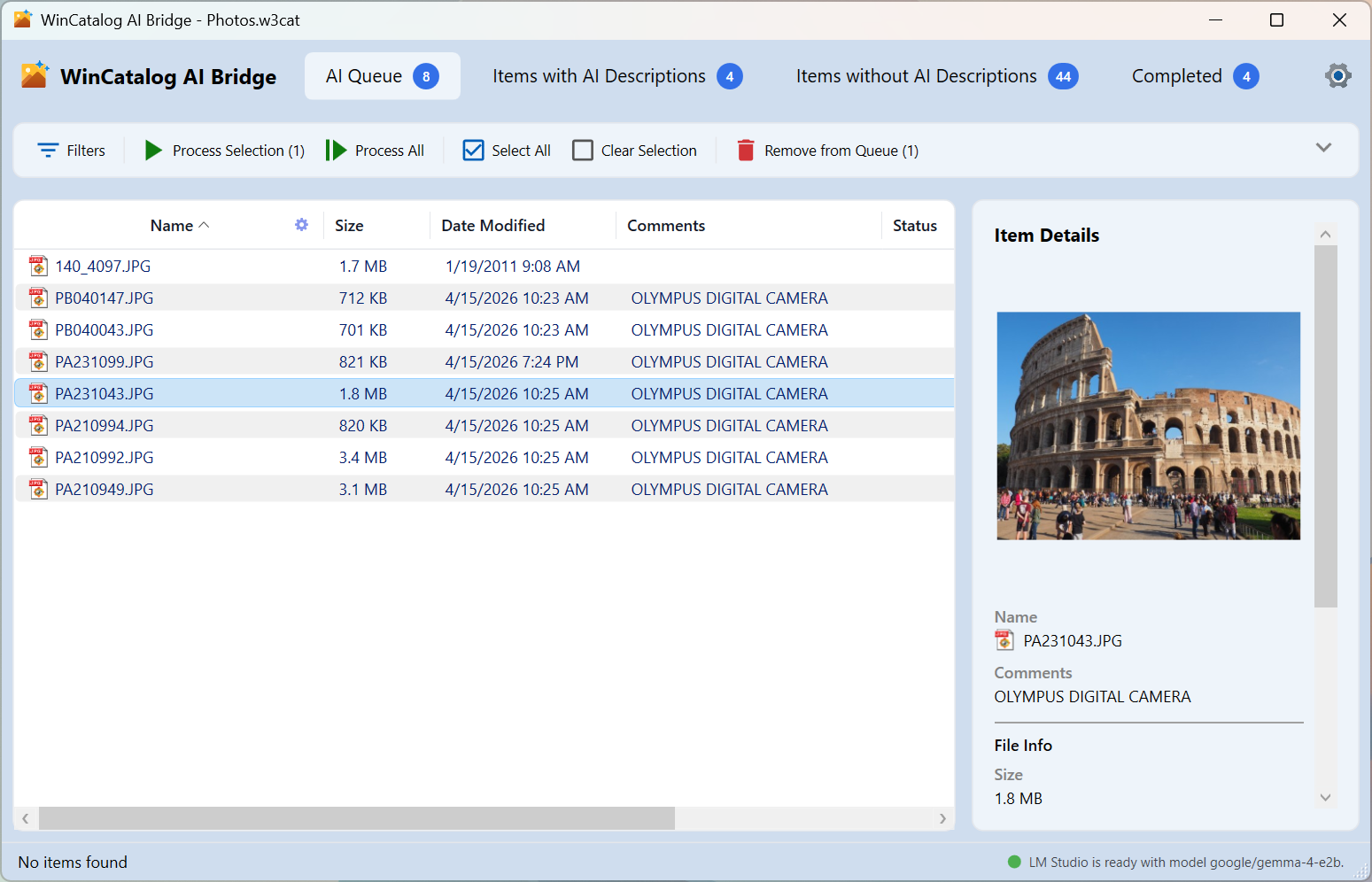
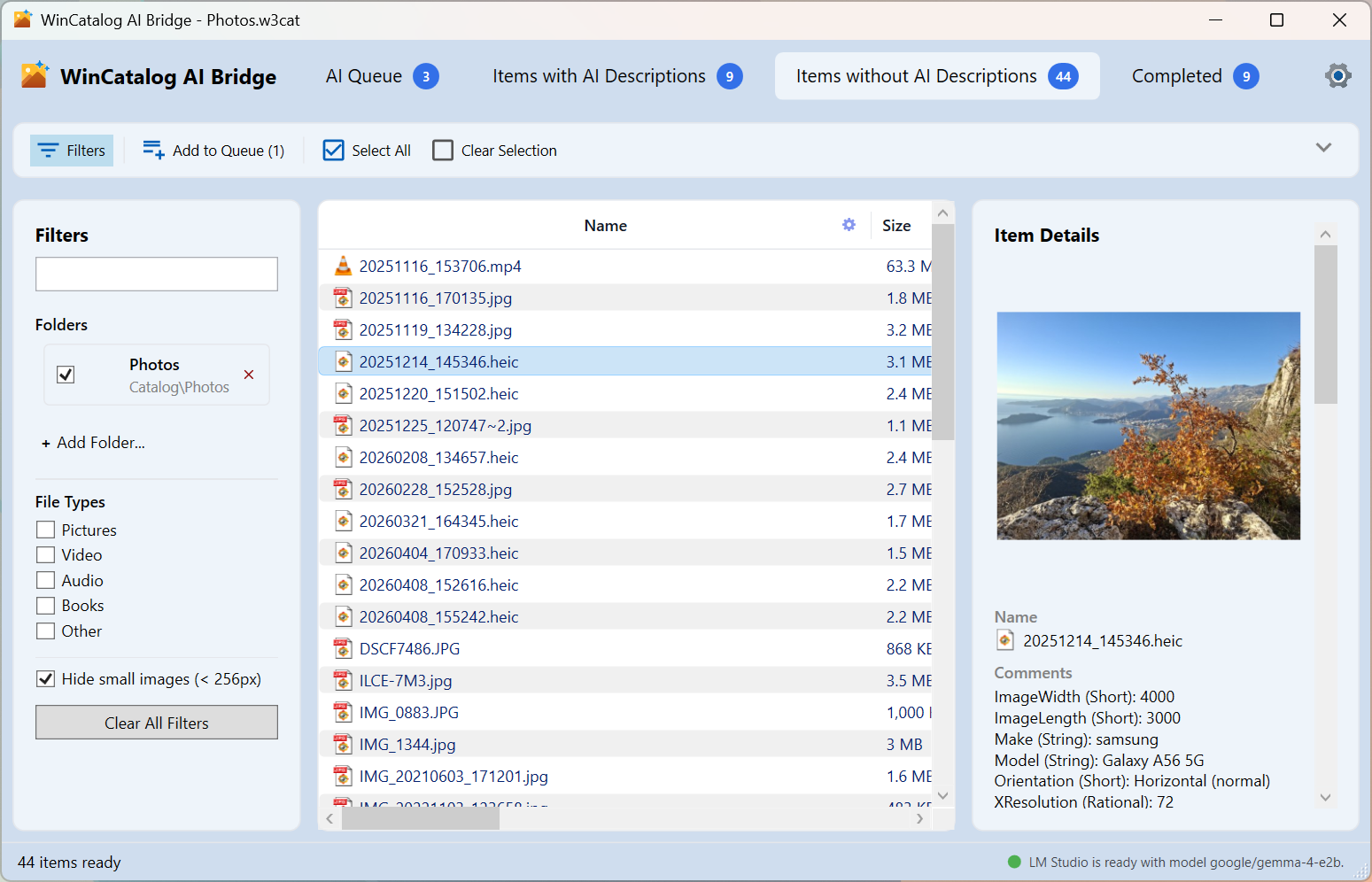
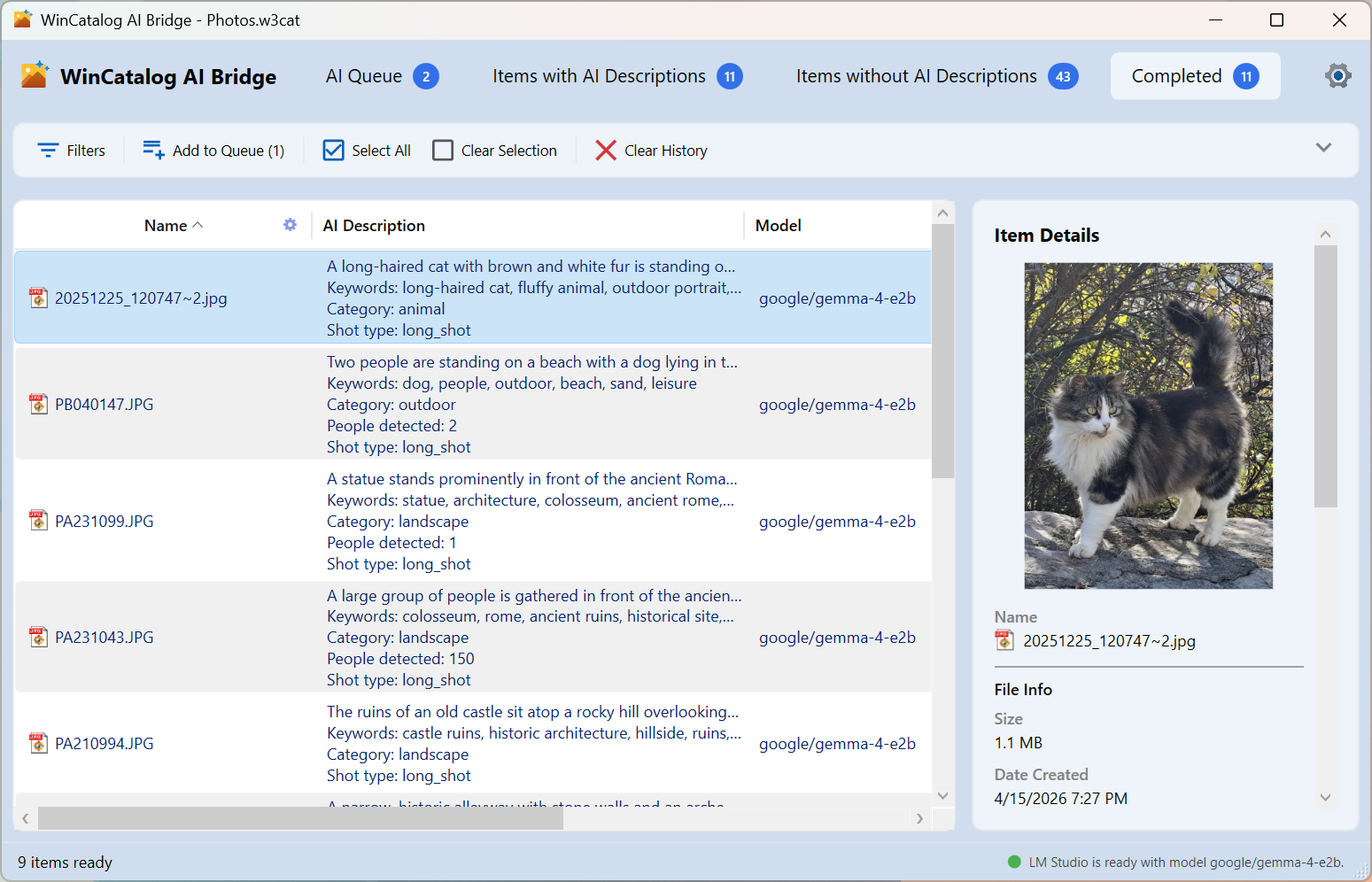
WinCatalog AI Bridge has four tabs. Each tab's header shows the number of items it contains.
Tabs Overview
-
AI Queue: Files waiting to be processed
-
Items with AI Descriptions: Files that already have generated descriptions
-
Items without AI Descriptions: Files in the catalog that have no descriptions yet
-
Completed: History of successfully processed files
AI Queue Tab
The AI Queue tab is the main working area. It shows all files currently waiting for AI processing.
Toolbar Buttons
-
Process All: Start processing all items in the queue
-
Process Selection: Process only the currently selected items
-
Select All: Select all items in the list
-
Clear Selection: Deselect all items
-
Remove from Queue: Remove the selected items from the queue without processing them
During Processing
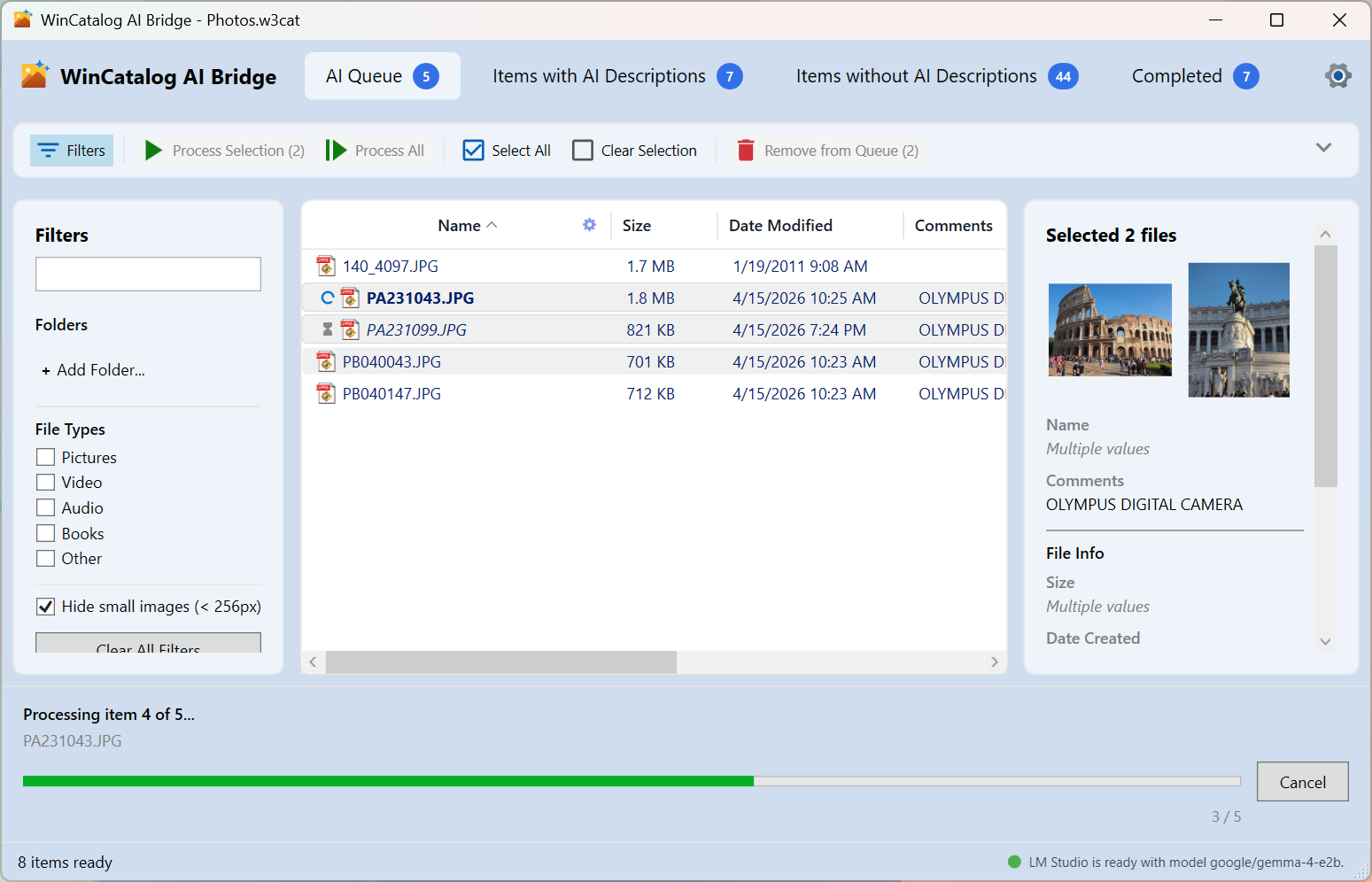
While processing is active, a progress panel appears at the bottom of the tab showing:
-
The name of the file currently being processed
-
A progress bar indicating overall batch progress (e.g.,
Processed 5 of 23)
-
A
Cancel button to stop processing
Cancelled items are returned to Pending status and remain in the queue for later.
Item Status Indicators
Each item in the queue displays its current status:
-
Pending: Waiting to be processed
-
In Progress: Currently being processed
-
Failed: Processing failed — the item stays in the queue; see the error message for details
Filtering
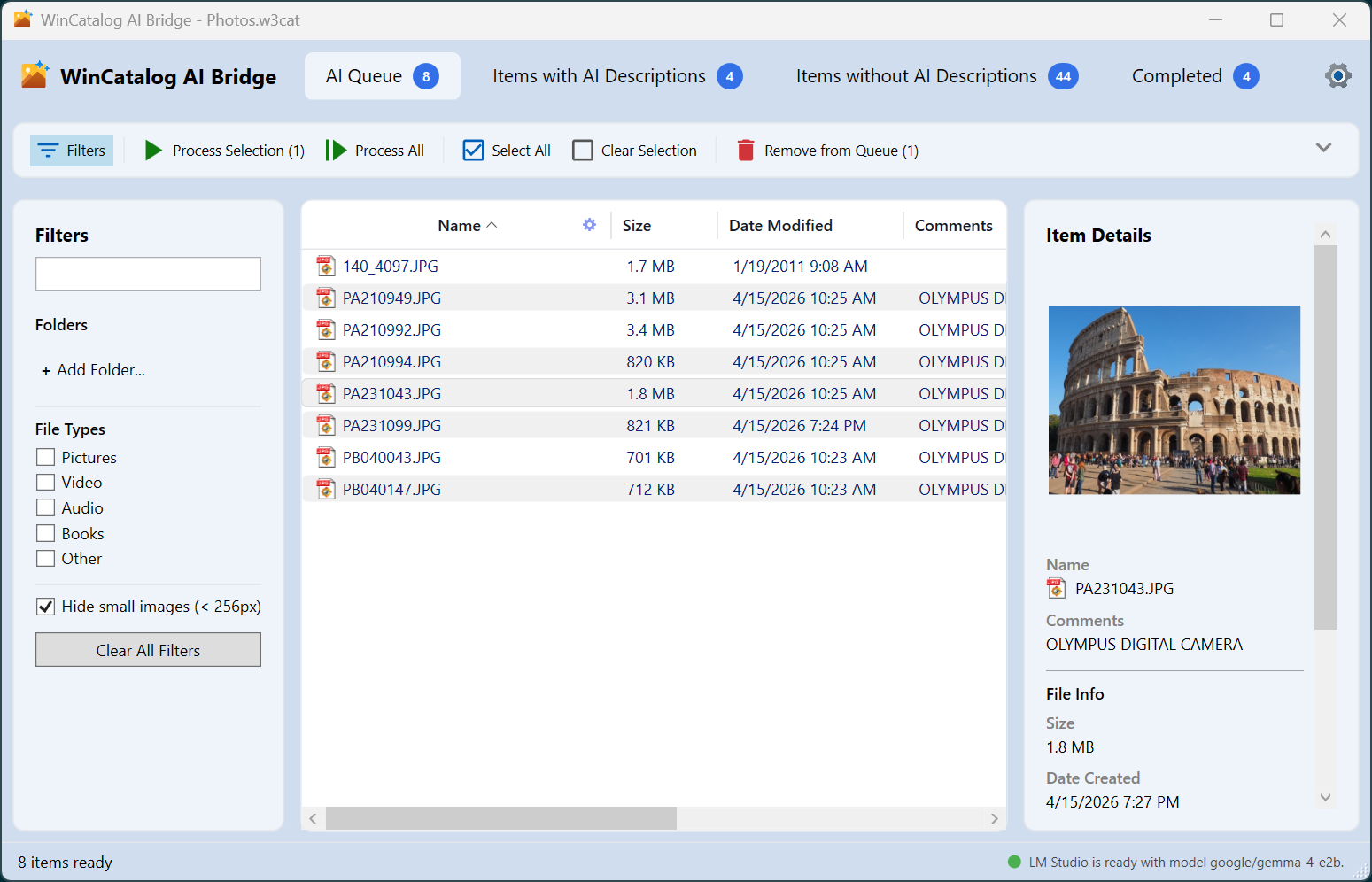
Use the Filters button to show or hide the filter panel on the left side. Filters let you narrow the list by:
-
File type — Pictures, Video, Audio, Books, Other
-
Folder — Select a specific catalog folder
-
Hide small images — Exclude thumbnails smaller than 256 pixels
-
Text search — Filter by file name or path
Status Banner
A colored banner at the top of the window shows the provider connection status:
-
Green: Provider is ready — processing can start
-
Yellow: Provider has a warning (e.g., model not loaded)
-
Red: Provider is not reachable — check settings
-
Blue: Informational message
Click the banner or the status indicator dot to open Settings.
Items with AI Descriptions Tab
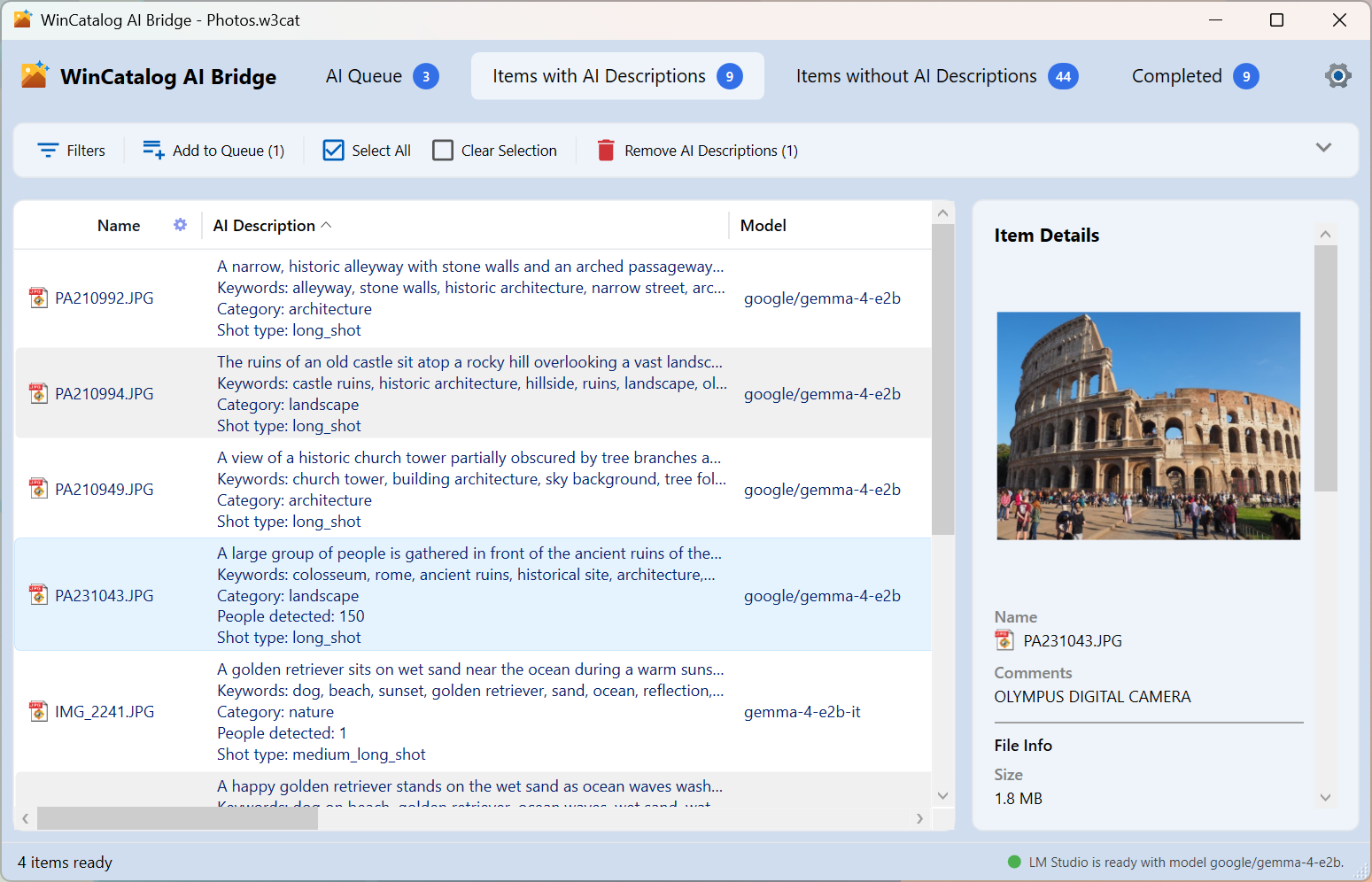
This tab lists all files in the catalog that already have AI-generated descriptions.
Available Actions
-
Add to Queue — Re-add selected files to the AI Queue to regenerate their descriptions
-
Remove AI Descriptions — Delete the AI-generated descriptions for the selected files. A confirmation dialog appears before deletion.
-
Select All /
Clear Selection — Bulk selection helpers
Detail Panel
When you select an item, a detail panel on the right shows its properties:
-
General: Name, Comments, Size
-
File Info: Date Created, Date Modified, Disk, File Path, Catalog Path
-
AI Descrioption: Caption, Keywords, Category, People Detected, Shot Type, Model, Date Generated
Right-click any text value in the detail panel to copy it to the clipboard.
Items without AI Descriptions Tab
This tab shows all catalog files that have thumbnails but no AI-generated descriptions yet. This is where you start when processing a catalog for the first time.
Available Actions
-
Add to Queue — Move selected files to the **AI Queue** for processing
-
Select All /
Clear Selection — Bulk selection helpers
Use Select All followed by Add to Queue to enqueue your entire unprocessed collection at once.
Filtering
Use the Filters button to narrow the list by file type (Pictures, Video, Audio, Books), folder, date, or other criteria.
Completed Tab
The Completed tab shows a history of files that were successfully processed in the current and previous sessions.
Available Actions
-
Clear History — Remove all entries from the history list. This does not delete the AI descriptions themselves — it only clears the history display.
-
Add to Queue — Re-add selected files to the AI Queue to regenerate their descriptions
-
Select All /
Clear Selection — Bulk selection helpers
Typical End-to-End Workflow
Here is the standard process for generating AI descriptions for images in your catalog:
For large collections, processing can take a significant amount of time depending on your hardware and the AI model used. On an average laptop with GPU processing takes 2-5 seconds per image. You can cancel at any time and resume later — items that were not yet processed remain in the queue.