↓↓↓ or scroll down to see them all ↓↓↓
Latest version: 2024.6.2 (February 5, 2024)
For Windows 11, 10, 8.1, 8, 7, Vista, XP
Download WinCatalog 2024Free, full-featured 30-day trial version. If you have not purchased a licence key - read-only mode after 30 days.
Buy WinCatalog 2024 until April 27, 2024 and get a 20% instant discount and:
By using WinCatalog 2024, you have 3 options for adding file content: add the entire disks to the catalog; add specific folders without a need to scan the whole disk contents; and individual files.
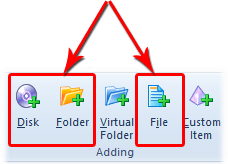
WinCatalog scans disks or folders, remembers each file and preserves the entire nested hierarchical folder structure.
"I recently bought WinCatalog. It is GREAT! Once I got used to it, is has been extremely useful. I have a CD catalog of over 600 CDs and DVDs. And over 50 1Tb external, USB, disks. WinCatalog handled cataloging and indexing them easily. AND it is very simple to find anything. This is one of the best purchases of software I have ever made. Thanks for a great product!"
John A. Unglert
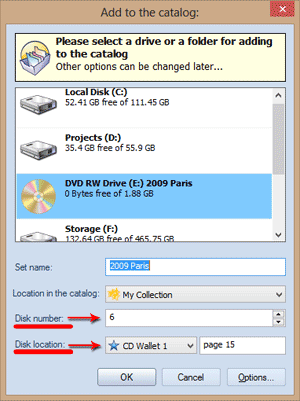 When you add a disk or a folder to the catalog you can assign a disk number that is automatically incremented with every new disk and a physical location.
Disk location is an attribute that helps you in finding disks where they are physically stored. For example, on the picture the location is "CD Wallet 1, page 5". You can read more about location below on this page.
After adding a disk or folder you can see the complete tree structure on the left and the contents of the selected folder in the middle panel.
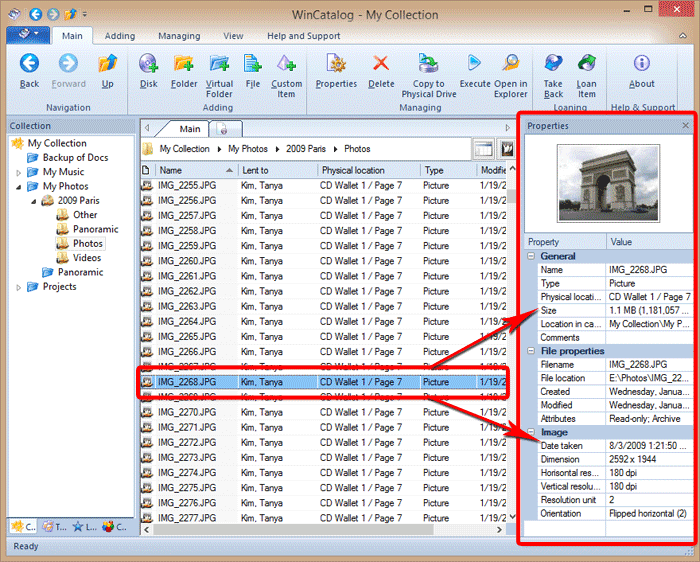
When you select a file or a group of files you can immediately see the most important properties in the right panel. The set of the displayed properties depends on an item type. For example, for a picture it displays the general properties, file details, and info grabbed from Exif tags. The thumbnail preview is also shown for pictures, and the preview will be shown even if the original disk or file is unavailable at the moment.
On the screenshot below you can see how it works for digital photographs, for other types of files it works similarly. In the next section below you can also find what types of files are suported by WinCatalog and what information about these files can be stored in your catalog automatically.
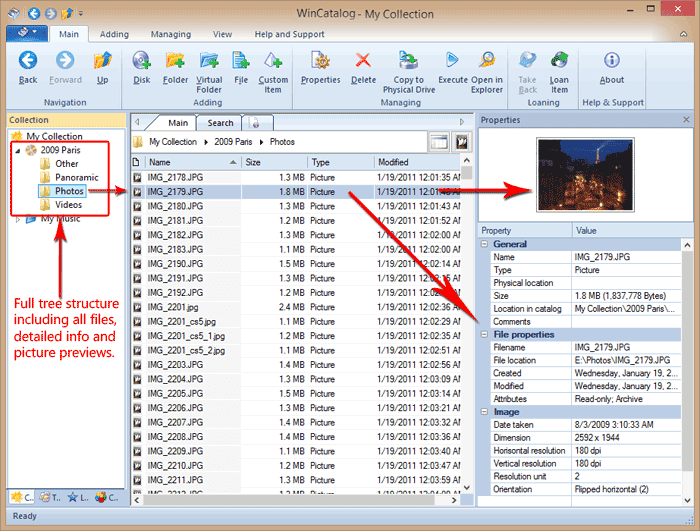
 WinCatalog adds every file found on your disks to the catalog while preserving the original tree hierarchy of the nested folders and remembering the files' attributes: path, size, dates of creation and modification, etc. By default, it skips system folders such as $Recycle.Bin and others but you can turn this option off in the program's options.
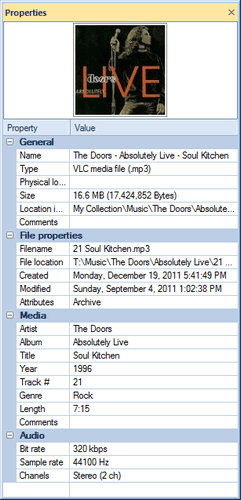
In addition to common file attributes, WinCatalog 2024 can process and grab more info for the following types of files:
All processing settings are adjustable and can be modified on the Processing options page of the Program's option.
 Using WinCatalog 2024 you can catalog as many disks, files, and folders as you want. WinCatalog uses an industry standard database engine SQLite in the core. That is why it operates quickly regardless of how many records (files, folders, and disks) your catalog has: hundreds, thousands, many, or even more.
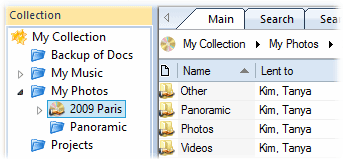
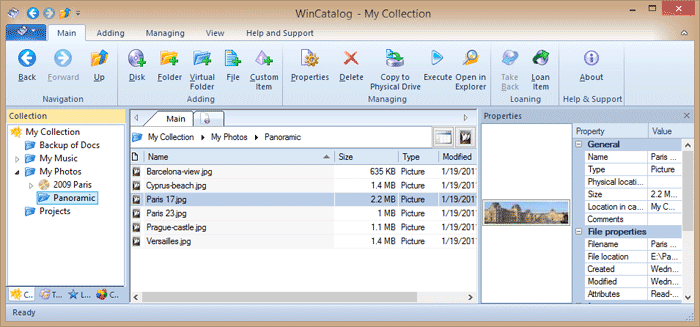 Using WinCatalog 2024 you can create virtual (blue) folders' structure and move your files, folders, and disks into these folders. Use of virtual (blue) folders makes your collection more structured.
You can drag disks, folders, or individual files into these folders without losing a connection to the physical disk structure.
In the picture shown below you can see the "Panoramic" virtual folder that contains panoramic photos from various disks.
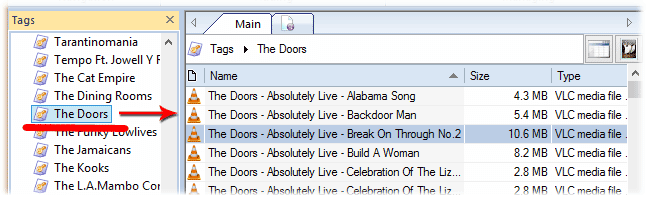 For better data representation you can tag your items and use as many tags as you wish. Spent a week on a vacation? Tag all photos from there using, say, 2 tags: "Vacation" and "2014". If you stored a movie, you may tag it by genre and by the year of production. If you have cataloged documents you may want to tag them by using a client, company name, or a division.
Furthermore, in some cases WinCatalog creates tags automatically. For example, when it scans a music folder and grabs ID3 tags it creates tags for Artists' names and links these tags with files. Full automation: you do not need to type anything or even click anywhere!
In the picture below you can see the tags that were created for music files. All the tags were automatically grabbed and linked with files when WinCatalog cataloged a disk or a music folder.
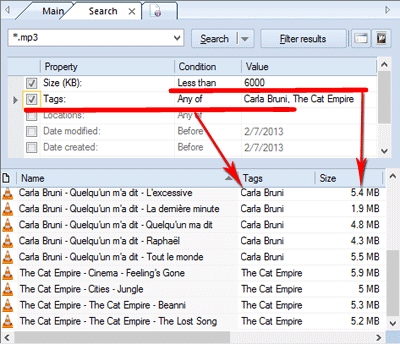 When the search is done you can filter the results, no matter how many results it contains. Use the search filter to see files and folders matching one or more specific criteria.
You can filter results by type, size, date (or a range of dates) when files were created or modified.
More advanced filters help to limit the search depth or display results located on a certain disk or in a specified catalog folder.
Duplicate files finder is also included, please read below.
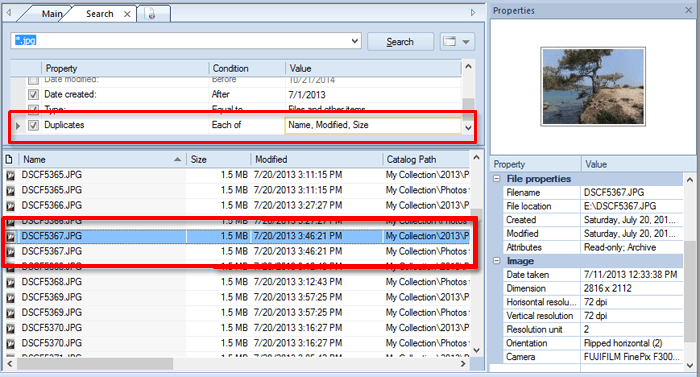
Find duplicate files and folders in your catalog. Just mark fields you wish to check and WinCatalog will do the rest. Sort search results by a desired column and duplicate files will be stacked together.
In the picture below all three fields (Name, Date Modified and Size) are equal and both "DSCF5367.JPG" files are shown together as duplicate files.
You may also calculate the checksum for files while scanning disks and then find duplicate files (e.g. duplicate pictures, duplicate photos, duplicate mp3, etc.) by a checksum, even if files have different names.
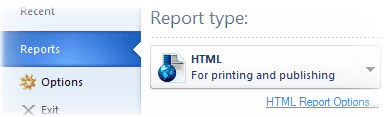 Export a part of your disk catalog as an XML file, web page or a CSV file. Using these popular formats you are able to publish your data over the local network or Internet, modify it, and print with any spreadsheet application such as MS Excel, Open Office Calc, or Google Spreadsheet.
By passing command line arguments to WinCatalog 2024, you can automate basic tasks like adding new or updating previously catalogued disks, folders or files, starting new searches, finding duplicates, and more.
For example, you can add a task to Windows Task Scheduler to launch WinCatalog and update a folder every night (or using your own schedule).
All supported commands are described in the user manual (pdf version is also available).
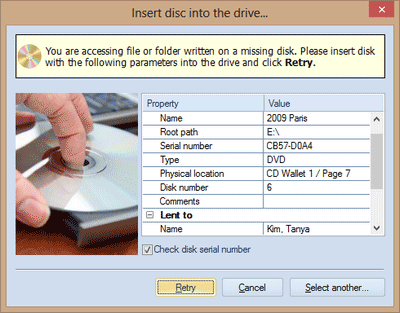 When performing a file operation (i.e. copying, launching, or opening in Explorer) with a file or a folder located on a disk that is not connected to the computer at the moemnt, WinCatalog will display an Insert Disk message where it will tell you all the info about the disk including the physical location.
After connecting the disk to the computer (for removable drives) or inserting the disk into the drive (for optical discs) just click Retry and WinCatalog will perform the operation you intended to execute.
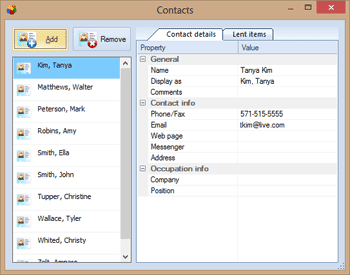
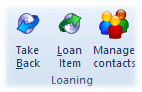 Use the contact manager to track who of your friends or colleagues has taken the particular disk and when.
You will never forget who you loaned your disks! No lost disks anymore!
On the pictures below you can see that the loaned disk and all subitems are marked with the Hand icon. The loaner name is displayed in the "Lent to" column. The right picture shows the Contact manager.
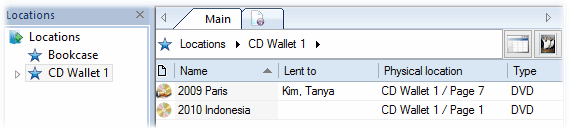
WinCatalog allows you to catalog not only disks but the disks' locations as well. Where do you keep your disks physically? In wallets? Or in boxes? Maybe a rescue disk with important backups is kept in your wall-safe? Manage all locations with WinCatalog.
WinCatalog displays Disk Location in the properties of every file from the disk and in the info shown at the Insert Disk dialog (see more).
 WinCatalog 2024 is compatible with Windows 10, Windows 8.1, Windows 8 (works as a desktop app), Windows 7, Windows XP and Windows Vista. WinCatalog also works in Mac OS X using Parallels or other virtualization solution.
The available interface languages are: English (default), Český, Deutsch, Español Europeo & Español Latino, Français, Italiano, Magyar, Nederlands, Polski, Português Brasileiro & Portugal, Română, Slovak, Slovenski, Suomi, Svenska, Türkçe, العربية (Arabic), Bahasa Indonesia, Русский, Ελληνικά, 한국어, 日本人, 中文.
Latest version: 2024.6.2 (February 5, 2024)
For Windows 11, 10, 8.1, 8, 7, Vista, XP
Download WinCatalog 2024Free, full-featured 30-day trial version. If you have not purchased a licence key - read-only mode after 30 days.


 WinCatalog
  WinCatalog
 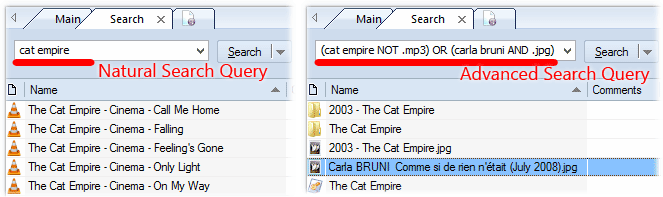 Using WinCatalog 2024 you can search through your entire collection and find in seconds exactly what you're looking for.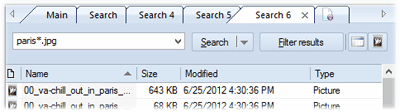
 When the contents of the disk changes, WinCatalog updates it very quickly. It skips unmodified files - it makes the update process very fast. When the disk data is updated, the previously entered comments and tags (keywords) are preserved.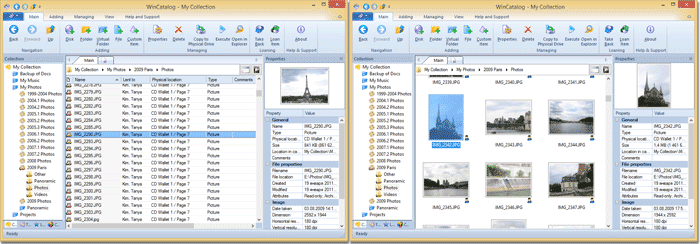
 Using WinCatalog you can quickly operate with your files: you can launch them to open with the default application, open file locations in Windows Explorer, or even copy files to a new location directly from WinCatalog.