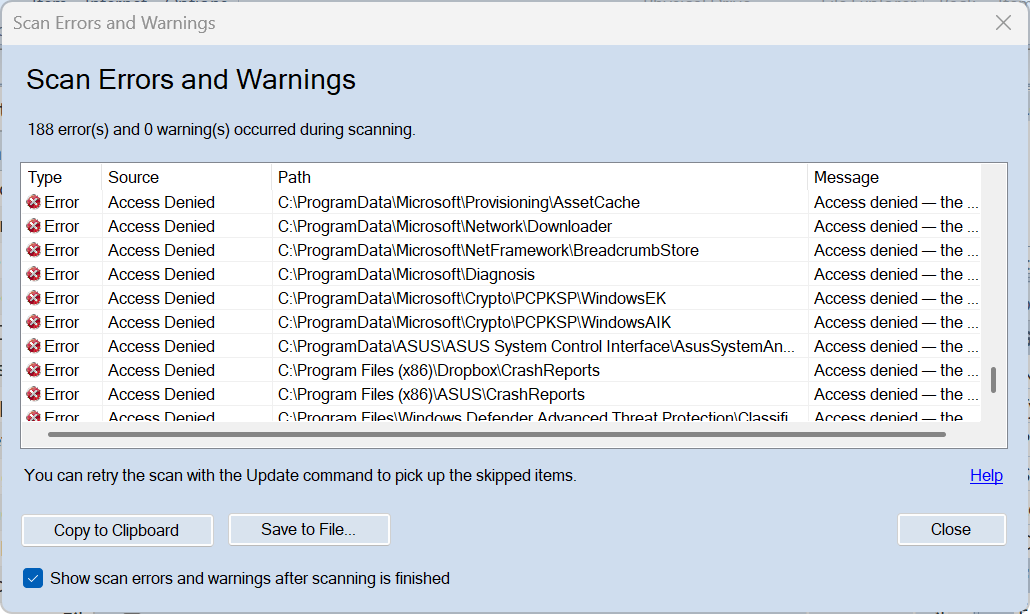
When Disk Scanner finishes scanning a disk or folder, it might present the Scan Errors and Warnings dialog. This dialog helps you understand what went wrong, which items were skipped, and whether the scan was mostly successful or failed.
The Dialog Interface
The dialog lists everything that failed during the scan. The summary at the top shows the exact count of errors and warnings. If the scan encountered at least one error, the dialog adds a retry hint suggesting you run the scan again after fixing the underlying issue (like reconnecting an external drive).
The data grid contains four columns:
-
Type: Either an Error or a Warning.
-
Source: The subsystem that generated the error.
-
Path: The exact file or folder path where the issue occurred.
-
Message: A description of the issue.
You can select rows and press Ctrl+C (or click Copy to clipboard) to copy the details as tab-separated text. You can also click Save to file to write the entire list to a text file for support or later review.
The checkbox at the bottom — Show scan errors and warnings after scanning is finished — lets you disable this dialog for future scans.
Categorization: Errors vs. Warnings
Not every failure ruins the scan. The system categorizes issues into Errors and Warnings based on their severity.
Errors mark a complete failure to process an item. If the scanner cannot read a directory tree because of an "Access Denied" restriction or a dead drive, it skips that item entirely.
Common error sources include:
-
IO: Physical drive failures, bad sectors, or disconnected network drives.
-
AccessDenied: Windows blocked the scanner from reading the folder because of file-system permissions.
-
Transaction: The internal SQLite database failed to write the item, often due to disk space issues.
Warnings are less severe. The scanner successfully found the file and added it to the database, but failed to extract extra details.
Typical warnings include:
-
Missing transient files: Sometimes an application deletes a temporary file right after the scanner lists the directory but before it can open the file. The engine treats Win32 `FILE_NOT_FOUND` (Error 2) and `
PATH_NOT_FOUND` (Error 3) during directory listings as warnings, since temporary file thrashing is a normal part of Windows operation.
-
PluginTimeout: An external plugin took too long to read media details (like looking inside a massive archive or reading corrupted video headers).
-
Checksum: The scanner added the file but failed to calculate its MD5 or SHA256 hash.
Presentation Logic
When the active scan ends, the application checks if the error list is empty. If it found problems, it checks your preferences before displaying the dialog.
There's the option in the Finishing section of each scanning profile — Show scan errors and warnings after scanning is finished — based on this option, the application decides if Scan Errors and Warnings appear at the end of the scanning process: If checked, the modal window appears. The system can override this preference. For example, if you run a background or automated scan, an override forces the engine to suppress the dialog so the application doesn't freeze waiting for you to click "Close."
The same may be achieved via command line using the -ScanErrors / -se keys with [skip|show] parameters.